Who is DxCopilot for?
The current public release is for independent, solo doctors who want faster consultation documentation and structured clinical decision support.
See both core workflowsHow does voice intake work?
In Quick Prescription & Notes, dictate the visit in a supported browser in the language you choose, or type it, up to 500 words. Choose Prepare Documents and one AI request reads the text. A patient name introduced with a recognized phrase is replaced with a placeholder before sending, and the transcript is not stored.
Explore voice documentationCan DxCopilot generate both a prescription pad and clinical notes?
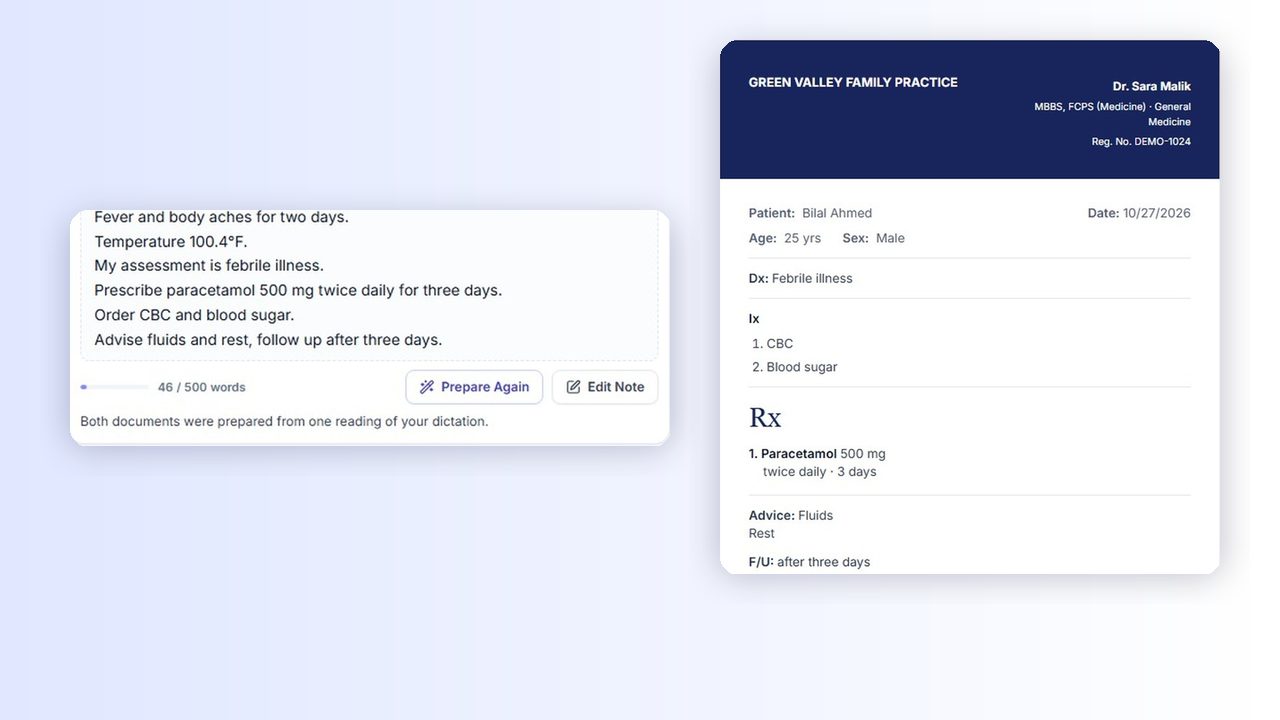
Yes. One dictation prepares both: the prescription on your own pad, with diagnosis, investigations, medicines with their instructions, advice and follow-up, and clinical notes showing only the sections your dictation supports. DxCopilot organizes what you say; it does not choose the treatment.
See how documents are preparedCan I use my own branding and customize my prescription pad?
Yes. In Pad Settings, add your practice name, address and phone number, your doctor details, a logo and an uploaded or drawn signature, then choose one of five predefined designs and an accent colour. Blank-pad mode prints on stationery you already have. Layouts come from the predefined designs; free-form layout editing is not offered.
See the pad designsCan I edit generated documentation?
Yes. Both documents are edited directly on the page, line by line. Review flags point out a missing name, age, sex, dose, frequency or duration. Nothing is saved until you choose Save, and you can print or save a PDF whenever you are ready.
Read the documentation FAQCan I use, edit or create my own clinical templates?
Yes. Use a built-in specialty template, edit its sections and fields, duplicate it, create one from scratch, or save a recorded visit as a template. You can also choose which parts of the analysis each template asks for.
Explore specialty consultation templatesCan AI populate a template from my consultation intake?
Yes. Dictate or type your note in Voice Intake and choose Fill Template Fields. Only empty fields that can hold a stated value exactly are filled, values you entered are kept, and other stated details are kept as editable Additional Details.
How template auto-fill worksCan I attach patient reports, and which formats are supported?
Yes. Attach PDF, Word (DOCX), plain text, or JPG, PNG, WEBP or GIF images: by default up to 10 MB each, 10 files per visit and 5 in each analysis. Printed text in images and scanned pages is recognised in your browser for you to review and correct. DxCopilot works from text and does not visually interpret images, scans or ECG traces. Do not upload direct patient identifiers.
Explore Clinical AI AnalysisWhat structured analysis and references are generated?
Alerts, a clinical summary, differential diagnosis, what might be missing, risk scores, suggested tests, treatment, medications, a second opinion, an optional follow-up plan, and citations and references, plus a findings card for each attached report. Each template can switch parts on or off.
See the analysis outputDoes DxCopilot replace a doctor's judgment?
No. DxCopilot offers suggestions for a qualified doctor to review, edit or reject. It does not replace clinical judgment, prescribe independently or treat patients.
Read about clinical review and judgmentWhich specialties are supported?
The built-in catalog covers 20 specialties, including General Medicine, Cardiology, Pediatrics and Internal Medicine. You can also create personal templates for your own documentation needs.
Explore specialty consultation templatesHow do the free demo and pricing work?
When a free demo is offered, a new account starts on it automatically. It lasts a set number of days with a set allowance, is available once per account and never renews; to continue, you choose a paid plan. Plans include separate Clinical AI Analysis and Quick Prescription & Notes credits. The pricing page shows current prices, allowances and whether a demo is offered.
Compare current plansHow is patient information handled?
For voice documentation, only the dictation text is sent to the AI and the transcript is not stored; documents are kept only when you save them. For Solo Doctor accounts, attached report files are not stored: their extracted text is sent for analysis and the files are discarded. The privacy policy explains what is sent to AI providers and which service providers are involved.
Read the privacy policy